Sign in and pick your event
Race Results scopes every screen to a single track + event. Sign in, choose where you're racing, and the rest of the app — Slips, Live, and Search — falls in line.
raceresults.1320cc.com in any modern browser.
The current track and event are saved in your browser and persist across sessions. Change them any time from the navigation bar.
The navigation bar, decoded
Two rows live at the top of every page: a context strip with your current event, account, and feedback shortcut — and a tab strip that switches between the three core views.

| Element | What it does |
|---|---|
| Track · Event chip | Shows your currently selected track and event (e.g. Summit Motorsports Park · Edelbrock Super Series). Tap to open the selector. Reads Select track when nothing is chosen. |
| Feedback button | Opens a pre-addressed email to feedback@1320cc.com for bug reports or feature requests. |
| User icon | Opens the user menu (below). Your name appears beside the icon when signed in. |
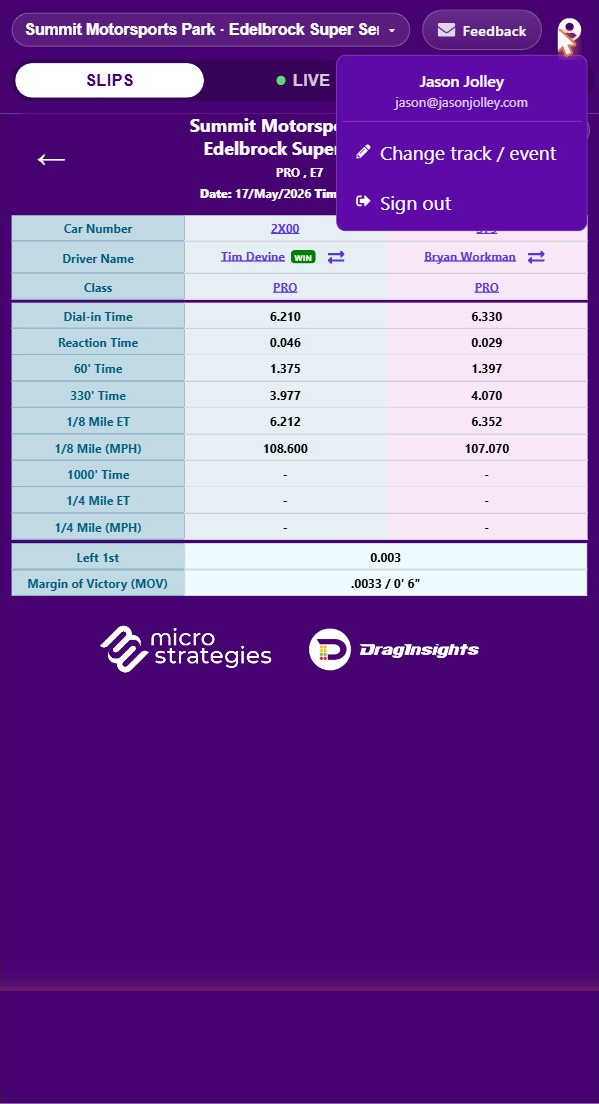
- Change track / event — re-opens the selector
- Sign out — ends your session
A small green dot beside the Live tab label means the live data stream is actively connected to the track's timing system.
Pointing the app at the right race
Every view in Race Results is scoped to one track + event at a time. The selector is the one place you set both.
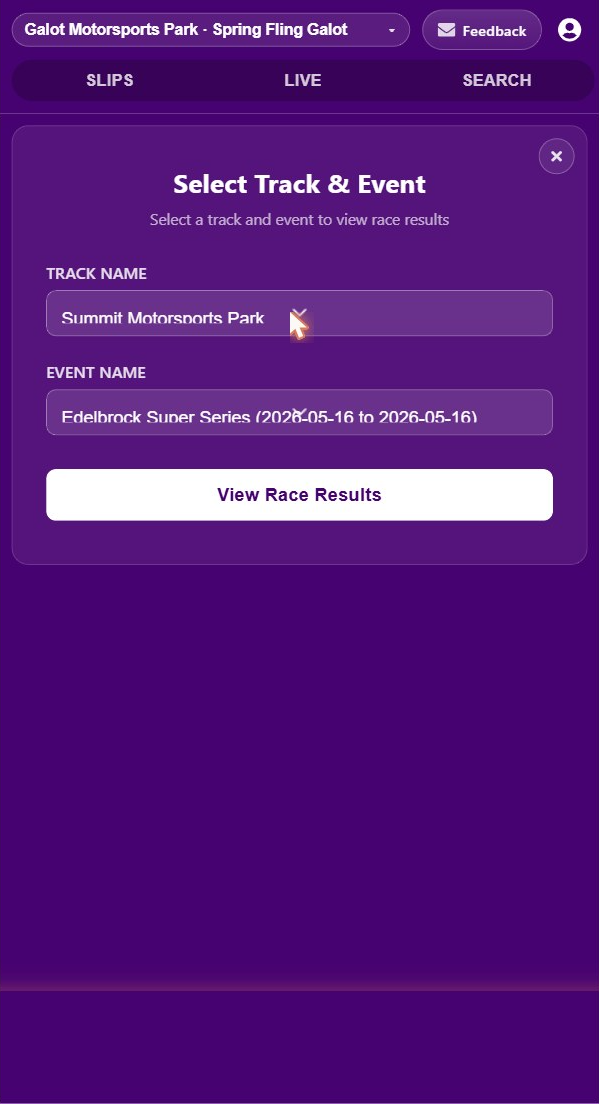
Any saved search results from the previous event are cleared so results always match what you're looking at.
The Time Slip view
Two columns — left lane on the left, right lane on the right — showing every metric for a single race side-by-side, with the winner badged and ready to compare against their last run.
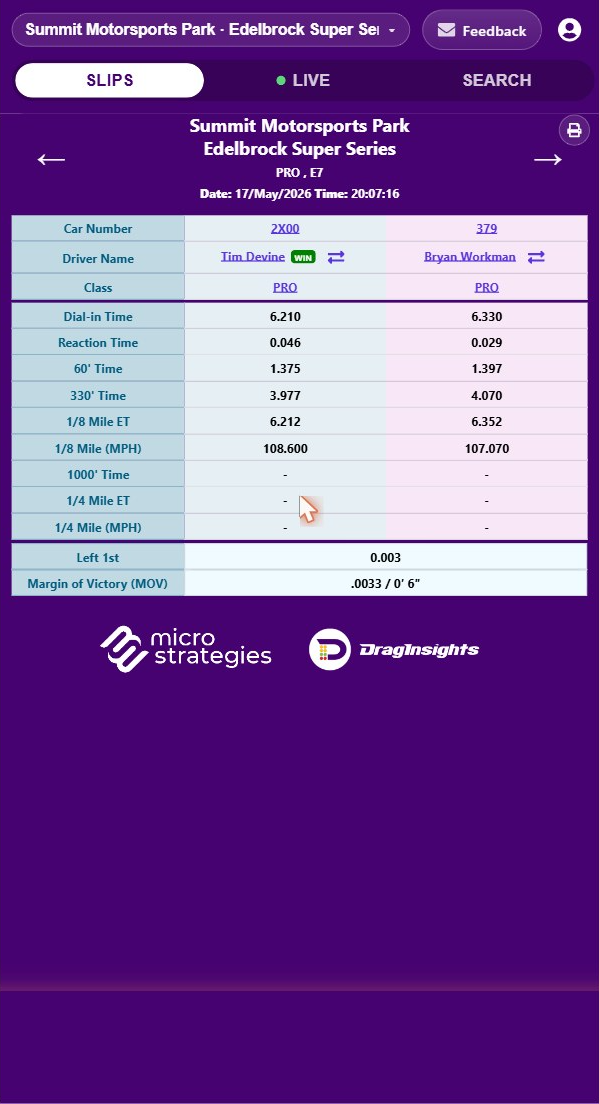
Swipe right for the previous race, left for the next — anywhere on the slip.
| Element | Description |
|---|---|
| Print 🖨 | Opens the browser print dialog for the current slip. Layout is print-optimized. |
| ← / → arrows | Navigate to the previous or next race in the current event. |
| Track & Event | Echoes the selected track and event for context. |
| Category & Round | The bracket category and round number — e.g. PRO, E7. |
| Date & Time | The exact date and time the race was run. |
When you're viewing the most recent race in an event, the view re-checks for new races every 10 seconds. If you scroll past the end of the list, a Latest button appears to jump back.
| Field | Description |
|---|---|
| Car Number | The car's assigned number. Clickable — searches all races for this car. |
| Driver Name | The driver's name. Clickable — searches all races for this driver. A WIN badge appears beside the winner. |
| Class | The car's racing class. Clickable — searches all races in this class. |
Every metric the timing system reports, in seconds to three decimal places.
| Field | Description |
|---|---|
| Dial-in Time | The elapsed time the driver predicted for the run (bracket racing). |
| Reaction Time (RT) | Time from green light to when the car left the starting line. |
| 60′ Time | Elapsed time at the 60-foot mark. |
| 330′ Time | Elapsed time at the 330-foot mark. |
| 1/8 Mile ET | Elapsed time at the 1/8-mile mark. |
| 1/8 Mile (MPH) | Speed at the 1/8-mile mark. |
| 1000′ Time | Elapsed time at the 1000-foot mark. |
| 1/4 Mile ET | Elapsed time at the 1/4-mile mark. |
| 1/4 Mile (MPH) | Speed at the 1/4-mile mark. |
| Field | Description |
|---|---|
| Left / Right 1st | Which lane's car triggered the finish-line beam first. |
| Margin of Victory | Winning margin in seconds and converted to feet & inches — e.g. .0054 / 1′ 2″. |
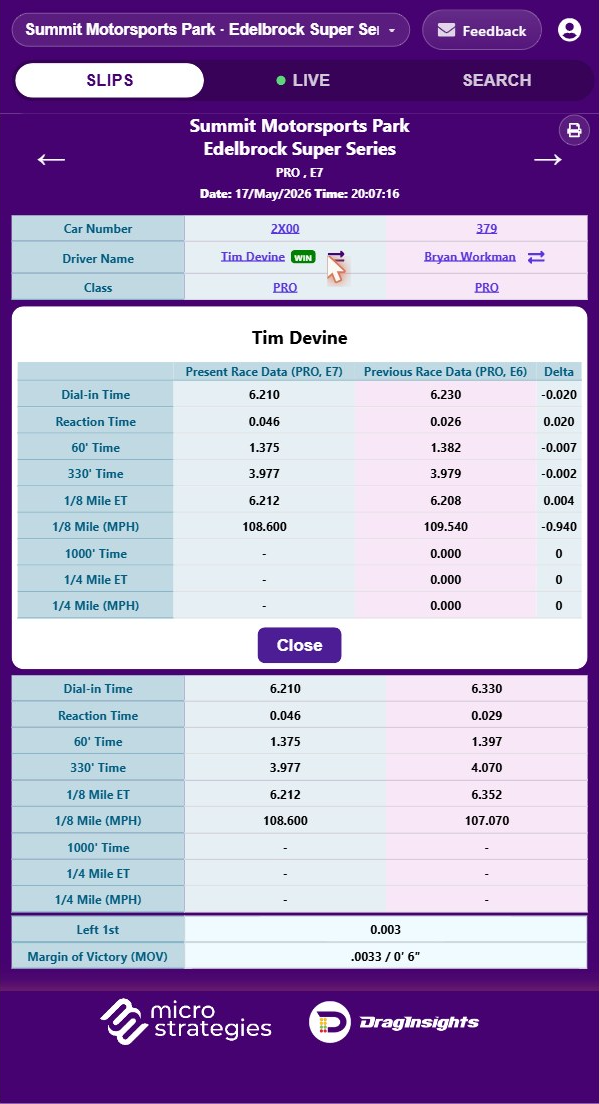
Great for spotting consistency. Tap Close to dismiss.
Searching the historical record
Filter by date range, category, round, class, driver, car number, or ET window — then compare any two results side-by-side.

| Field | Type | Notes |
|---|---|---|
| From Date | Date picker | Optional. If set, To Date is required. |
| To Date | Date picker | Must be on or after From Date. Each date has a × clear button. |
| Track Name | Read-only | Set by the Track & Event Selector. |
| Event Name | Read-only | Set by the selector — shows event date range. |
| Category | Dropdown | Populated from the selected event. Choose a category to enable Round. |
| Round | Dropdown | Populated after a Category is selected. |
| Class | Text | Free-text class search (up to 50 chars). |
| Driver Name | Text | Free-text driver name (up to 50 chars). |
| Car Number | Text | Free-text car number (up to 30 chars). |
| ET Range | Two numbers | Filter by elapsed time — e.g. 8.500 – 9.000. |
Leave fields blank to broaden results. Search runs the query and collapses the panel. Clear resets criteria and reloads all races for the event.

- Compare checkbox — pick up to 2 cards for side-by-side comparison.
- Time Slip button — opens the full slip; you can swipe through your search results from there.
Results load as you scroll — a spinner reads Loading more…, then No more results at the end.

Rows compared: Date, Car #, Class, Round, Result, Dial-in, RT, 60′, 330′, 1/8 ET & MPH, 1000′, 1/4 ET & MPH. Tap the × on a chip to remove a card from the panel.
Criteria, results, and selected comparison cards persist in your browser. Switch to the Time Slip view and back — everything is still there.
Live View — race-by-race, as it happens
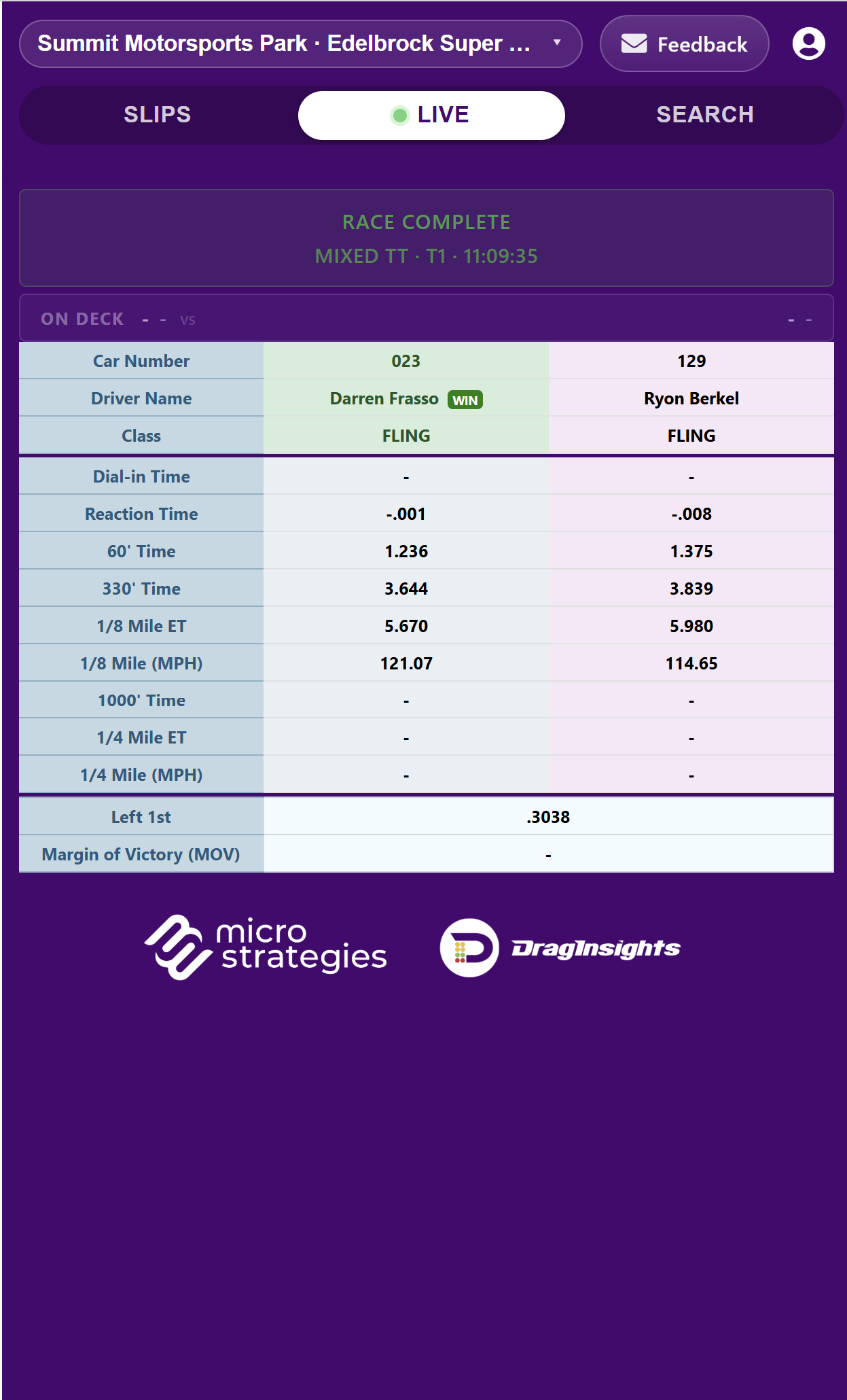
The Live view streams real-time race data straight from the track's timing system, with an On Deck panel for the next pair and full timing data the moment a race completes.
| No Race in Progress | Waiting between races. |
| Race in Progress | Cars on the track, timing live. |
| Race Complete | Final results displayed. |
The banner also shows the current Category,Round, and Time of the active race.
The next pair of racers, staged and ready. Car numbers and driver names are clickable — tap any of them to jump to a pre-filled search.
Once the race is complete, the timing table fills with the same metrics you'd see on the Time Slip view. The winner's column is highlighted and badged.
| Field | Description |
|---|---|
| Car Number | Clickable — searches all races for this car. |
| Driver Name | Clickable — driver history. WIN for the winner. |
| Class | Clickable — all races in this class. |
| Timing fields | Dial-in, RT, 60′, 330′, 1/8 ET & MPH, 1000′, 1/4 ET & MPH — same as the Time Slip. |
| First Light | Which lane triggered the finish beam first. |
| Margin of Victory | Seconds plus feet & inches. |
The live stream uses a persistent connection. If your phone sleeps, the network blips, or you switch apps, the connection re-establishes itself and the status banner updates. Leave the tab open at the track.
The Live view shows a prompt with a Select a Track button — pick a track and event first.
One tap → full history
Throughout the app, Car Number, Driver Name, and Class values are clickable. Tapping any of them does five things in a row:
This works from the Time Slip view, the Live view, and the On Deck panel — making it the fastest way to pull a driver's full history, every run by a car number, or every entrant in a class.
Install as a mobile app
Race Results works straight from your browser — just visit raceresults.1320cc.com and start using it like any other website. For frequent visitors, it's also a Progressive Web App, so you can install it on your phone, tablet, or desktop for a full-screen, app-like experience with its own home-screen icon and no browser chrome.
iPhone & iPad
- Open
raceresults.1320cc.comin Safari. - Tap the Share button (box with upward arrow).
- Scroll down and tap Add to Home Screen.
- Confirm the name and tap Add.
Android
- Open
raceresults.1320cc.comin Chrome. - Tap the ⋮ menu in the top-right.
- Tap Add to Home screen (or Install app).
- Confirm and tap Add.
Desktop · Chrome / Edge
- Open the site.
- Click the install icon (⊕) in the address bar — or use the browser menu.
- Click Install.
Once installed, the app launches in standalone mode (no address bar) and appears in your home screen, dock, or app drawer — like a native app.